How to connect a Sigenergy battery
Before you start
- The mySigen app.
- An email address on your Sigenergy system. If there isn't one, add it in the mySigen app first.
Steps
-
Step 1: Sign up with Daydream. On the Battery step, choose Sigenergy.
-
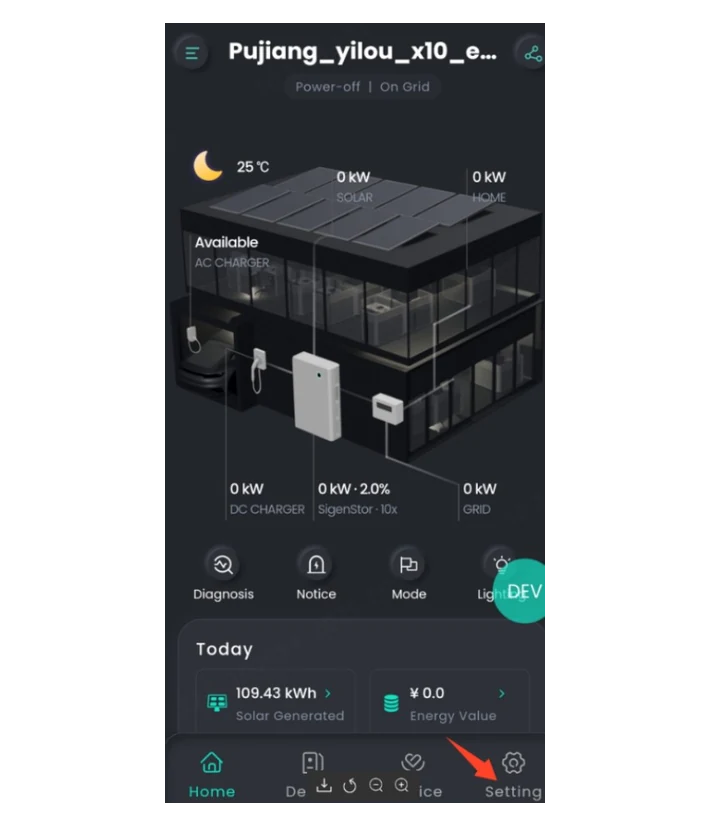
Step 2: Open the mySigen app and tap Setting.
-
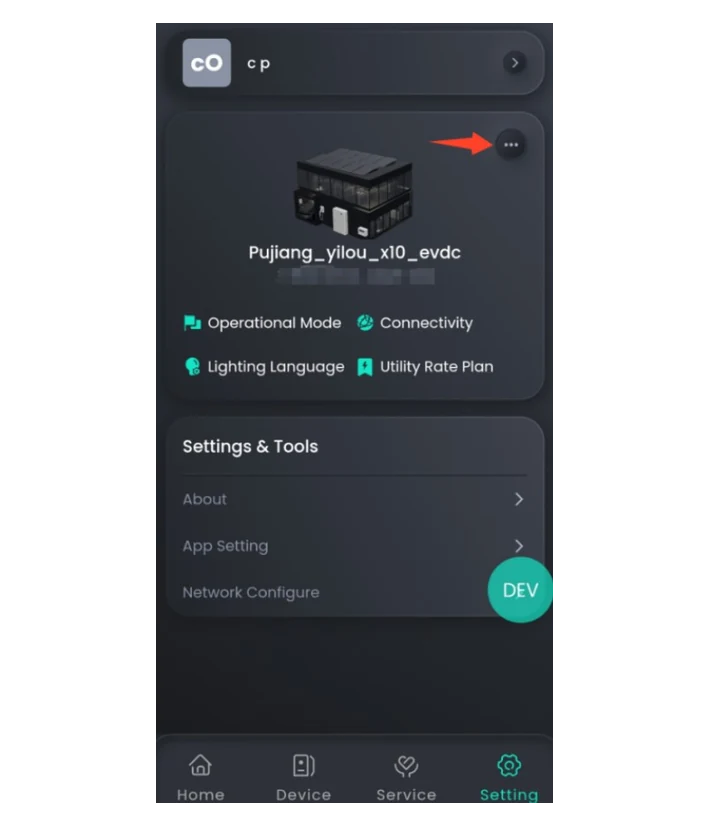
Step 3: Tap System Settings. On older app versions, tap the … on the system card instead.
-
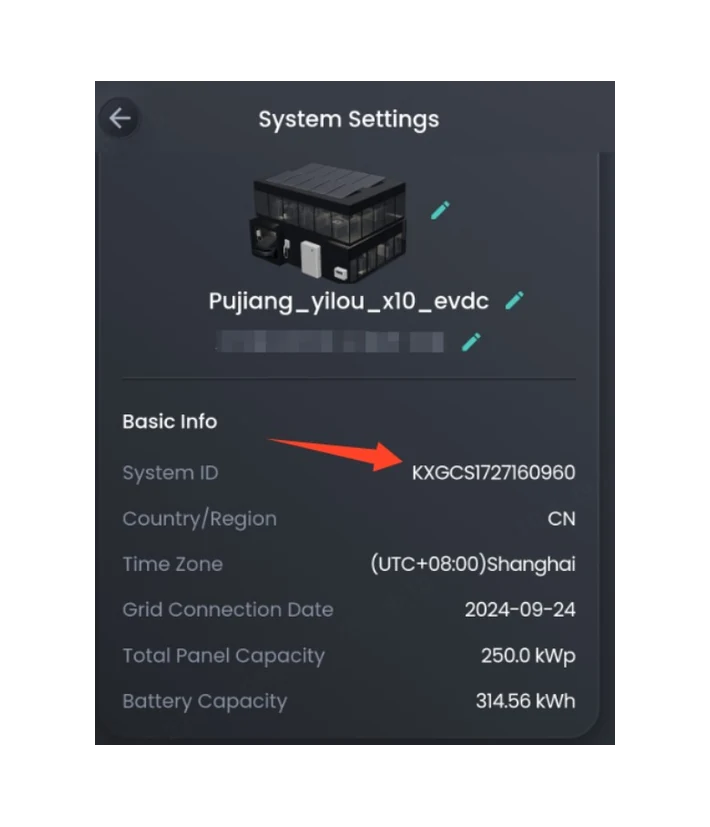
Step 4: Tap About. On older versions it is under Basic Info.
-
Step 5: Press and hold System ID to copy it. It is not the serial number.
-
Step 6: Paste the System ID into Daydream, tick the box to confirm you understand your battery switches to virtual power plant mode, and tap Request access.
-
Step 7: Sigenergy emails the person the system is registered to, which is often your installer. Nothing happens until they approve, which can take a day or two.
Good to know
- Read only for now: we can see your system, but cannot yet control it during events.
- Your battery switches to virtual power plant mode and needs to stay in that mode while it is connected. If the mode is changed back, we lose access.
- When you disconnect, your battery is set to maximum self-consumption mode.
- Systems on a 4G connection cannot be connected this way.
- A system already registered to another virtual power plant cannot be connected.
Other batteries: Enphase, ESY Sunhome, FoxESS, GoodWe, Growatt, Sungrow, Tesla